

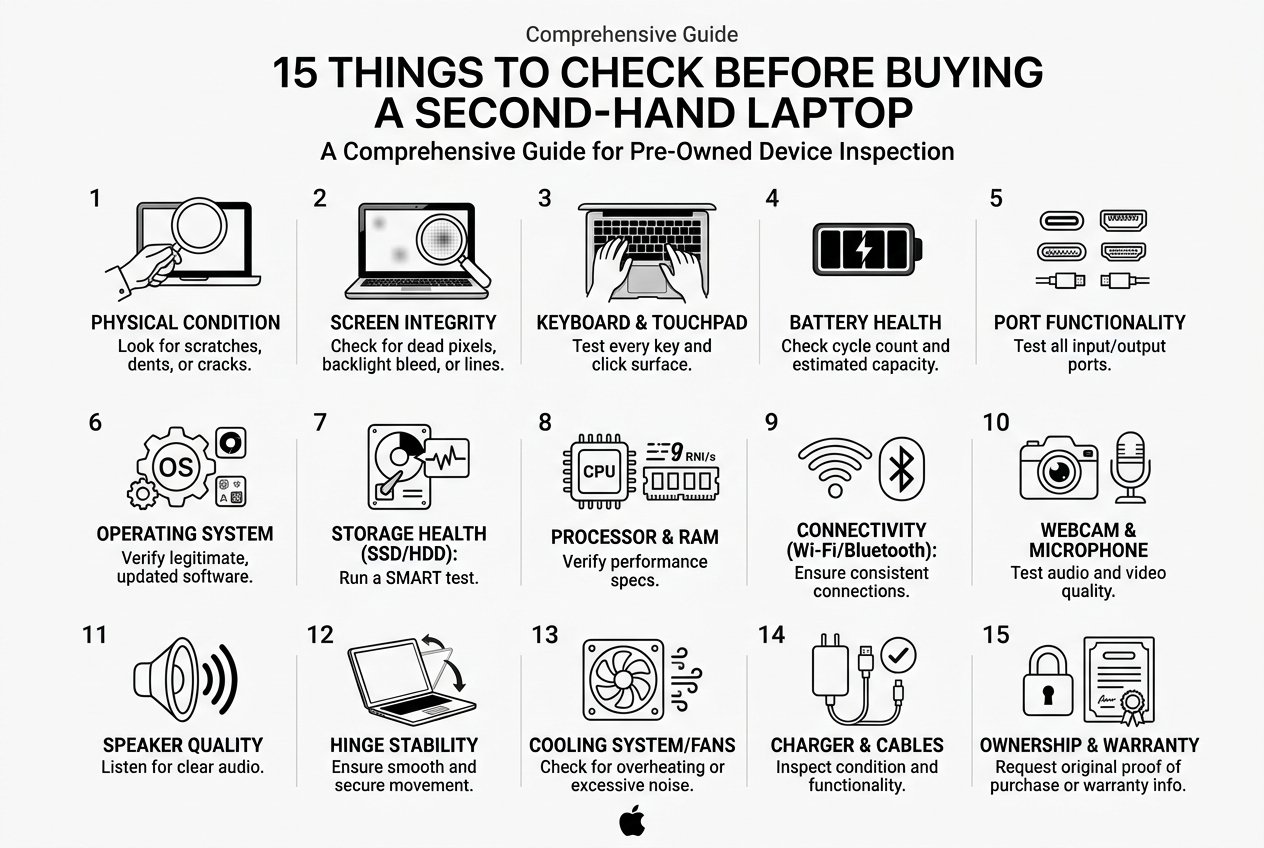
Buying a second-hand or pre-owned laptop can be an excellent way to get a better-performing device without spending the price of a brand-new laptop. However, not every used laptop is worth buying.
Before purchasing a pre-owned laptop from a marketplace, individual seller, or laptop shop, you should carefully check its processor, RAM, SSD, battery, display, keyboard, ports, physical condition, and overall performance.
If you’re searching for a second-hand laptop in Cumilla or anywhere in Bangladesh, this guide will help you understand exactly what to check before making your purchase.
1. Check the Laptop’s Physical Condition
Start with the outside of the laptop.
Look carefully for:
- Cracks or major dents
- Broken or loose hinges
- Damaged corners
- Missing screws
- Loose panels
- Signs of liquid damage
- Damaged charging ports
- Unusual gaps in the body
Minor scratches are normal with pre-owned devices. However, major body damage or loose hinges may indicate that the laptop has been dropped or poorly maintained.
At Yearim Tech, pre-owned laptops are checked for their overall physical condition before being offered to customers, helping buyers understand what they are actually purchasing.
2. Verify the Exact Processor
Don’t buy a used laptop simply because it says Core i5 or Core i7.
The processor generation and exact model matter significantly.
For example, a newer Core i5 can outperform an older Core i7 in many real-world situations.
Before buying, verify:
- Exact CPU model
- Processor generation
- Number of cores
- Performance requirements for your work
If you’re unsure which processor is suitable, a reliable laptop seller should help you select a model based on your actual workload rather than simply recommending the most expensive option.
3. Check RAM and Upgradeability
RAM affects how smoothly your laptop handles multiple applications.
Check:
- Installed RAM
- RAM type
- Number of available slots
- Maximum supported RAM
- Whether the RAM can be upgraded
For everyday browsing and office work, 8GB may be sufficient. For professional multitasking, programming, editing, and demanding applications, 16GB or more can be a better choice.
When comparing pre-owned laptops at Yearim Tech, customers can choose from different configurations depending on their budget and requirements.
4. Check SSD or Hard Drive Health
Storage capacity isn’t everything.
A laptop with a 512GB SSD isn’t automatically a better purchase if the drive is heavily worn or unhealthy.
Check:
- SSD or HDD type
- Storage capacity
- Drive health
- Read/write performance
- Usage information where available
- Upgrade options
An SSD is generally preferred for modern laptops because it provides significantly faster boot times and application loading than a traditional mechanical hard drive.
5. Test the Display Carefully
Replacing a laptop display can be expensive, so inspect it before buying.
Look for:
- Dead pixels
- Bright or dark spots
- Flickering
- Screen lines
- Uneven brightness
- Backlight bleeding
- Discoloration
Also verify the screen resolution, size, refresh rate, and panel type if these matter for your work.
A good pre-owned laptop seller should allow you to inspect the display before completing your purchase.
6. Check Battery Health
Battery degradation is normal in used laptops, but you should know the battery’s condition before buying.
Check:
- Battery health
- Full-charge capacity
- Design capacity
- Battery cycle count, where available
- Charging behavior
- Real-world backup time
Don’t expect every second-hand laptop to have a battery like a brand-new device. Instead, make sure the battery condition is reasonable for the laptop’s age and price.
7. Test Every Keyboard Key and the Touchpad
Open a text editor and test the keyboard.
Check every important key, including:
- Letters
- Numbers
- Function keys
- Arrow keys
- Enter
- Spacebar
- Backspace
- Shift
- Ctrl
- Alt
Also test the touchpad, clicking mechanism, scrolling, and gestures.
8. Test All Available Ports
A port may look perfectly fine but still fail to work.
Test:
- USB-A
- USB-C
- HDMI
- Headphone jack
- SD card reader
- Ethernet
- Charging port
If you regularly use an external monitor, mouse, keyboard, storage drive, or other accessories, this step is particularly important.
9. Check Wi-Fi and Bluetooth
Connect the laptop to a Wi-Fi network and test whether the connection is stable.
Also test Bluetooth with a wireless device.
Problems with Wi-Fi or Bluetooth may be caused by drivers or internal hardware, so it’s better to discover them before purchasing.
10. Test the Webcam, Microphone and Speakers
For freelancers, remote workers, students, and business professionals, these components can be essential.
Test:
- Webcam
- Microphone
- Speakers
- Headphone output
Make a quick recording and play it back to confirm that both the microphone and speakers work properly.
11. Check Temperature and Cooling
Run the laptop for at least several minutes instead of testing it for only one minute.
Pay attention to:
- Excessive heat
- Loud fan noise
- Sudden shutdowns
- Performance drops
- Abnormally slow performance
Some heat is completely normal during heavy workloads. However, excessive overheating may indicate dust buildup, cooling problems, or thermal issues.
12. Test Real-World Performance
Specifications don’t tell the entire story.
If possible, test the laptop with the type of work you actually intend to perform.
For example:
For office work: Open multiple browser tabs, documents, spreadsheets, and communication applications.
For programming: Run your IDE, browser, local environment, and other development tools.
For graphic design: Test your preferred design software.
For video editing: Open a sample project and test playback and editing performance.
For gaming: Test the GPU with an appropriate game or benchmark.
At Yearim Tech, customers looking for a pre-owned laptop can discuss their actual requirements before selecting a device, making it easier to choose a suitable configuration rather than buying based only on the model name.
13. Verify the BIOS and Hardware Specifications
Enter the BIOS/UEFI or use reliable system-information software to confirm the advertised specifications.
Verify:
- Processor
- RAM
- Storage
- BIOS information
- Battery information where available
- Serial/service information
This is especially important when buying a used laptop because the installed hardware may not always match what was advertised.
14. Check Windows Activation and Device Lock Status
Before purchasing a used laptop, make sure the operating system is properly activated.
Also confirm:
- Previous owner’s account has been removed
- There is no unknown administrator account
- The device can be reset
- The laptop isn’t still managed by an organization
- There are no unexpected login or activation restrictions
This is particularly important when buying previously owned business laptops.
15. Ask About Warranty and Replacement Support
Price shouldn’t be your only consideration when buying a second-hand laptop.
Ask the seller:
- Is there a replacement guarantee?
- Is there a warranty?
- How long does the warranty last?
- What components are covered?
- Is after-sales support available?
- What happens if a problem appears shortly after purchase?
This is one area where buying from an established laptop shop can provide significantly more peace of mind than buying from an unknown individual seller.
Yearim Tech provides pre-owned laptop options with customer-focused support, warranty and replacement policies on eligible devices, giving buyers additional confidence when choosing a used laptop.
What Should You Check Before Buying a Used Laptop?
Here’s a quick checklist you can save:
| Component | What to Check |
|---|---|
| Processor | Model and generation |
| RAM | Capacity and upgradeability |
| SSD/HDD | Health and capacity |
| Display | Dead pixels and brightness |
| Battery | Health and backup |
| Keyboard | Every key |
| Touchpad | Clicks and gestures |
| Ports | USB, HDMI, Type-C, audio |
| Wi-Fi | Connection stability |
| Bluetooth | Connectivity |
| Webcam | Camera and microphone |
| Speakers | Sound quality |
| Cooling | Temperature and fan noise |
| BIOS | Hardware information |
| Windows | Activation and account status |
| Body | Cracks, hinges and damage |
| Warranty | Coverage and duration |
Is Buying a Second-Hand Laptop Worth It?
Yes, if you choose carefully.
A properly inspected pre-owned laptop can offer excellent value, particularly if you want a business-class or higher-specification machine within a limited budget.
The key isn’t simply finding the cheapest used laptop.
You should look for the right combination of:
Performance + Condition + Price + Warranty + Seller Reliability
If you’re searching for pre-owned laptops in Cumilla, Yearim Tech offers a range of second-hand laptops for students, professionals, freelancers, businesses, and everyday users.
Rather than choosing a laptop based only on price, you can share your requirements and compare suitable options based on your budget, workload, preferred specifications, and expected usage.
Final Advice Before Buying a Second-Hand Laptop
Never buy a used laptop just because it has a powerful processor or a low price.
Take the time to inspect the hardware, test the performance, check the battery and storage health, verify the specifications, and understand the seller’s warranty or replacement policy.
If you’re buying a second-hand laptop in Cumilla or Bangladesh, choosing a seller that provides proper product information and after-sales support can make the buying experience much safer.
And if you’re considering a pre-owned laptop from Yearim Tech, make sure to test the device, understand its condition, and choose the configuration that actually fits your needs.
The best used laptop isn’t necessarily the cheapest one it’s the one that gives you the right performance, condition, value, and peace of mind.